
Edit your website by talking to Claude
Connect Claude.ai, Claude Desktop or Cowork to your account and ask for changes the way you would ask someone on your team. Included in the Profesional and Agencia plans.
Your website, within Claude's reach
MCP is an open standard that lets assistants like Claude work with other applications. clixxii supports it: Claude can read your pages, prepare changes in draft and, if you give it permission, publish them.
- OAuth connection: you never share your password
- You choose which websites it can use and what it can do
- Every change is logged in the history and can be undone
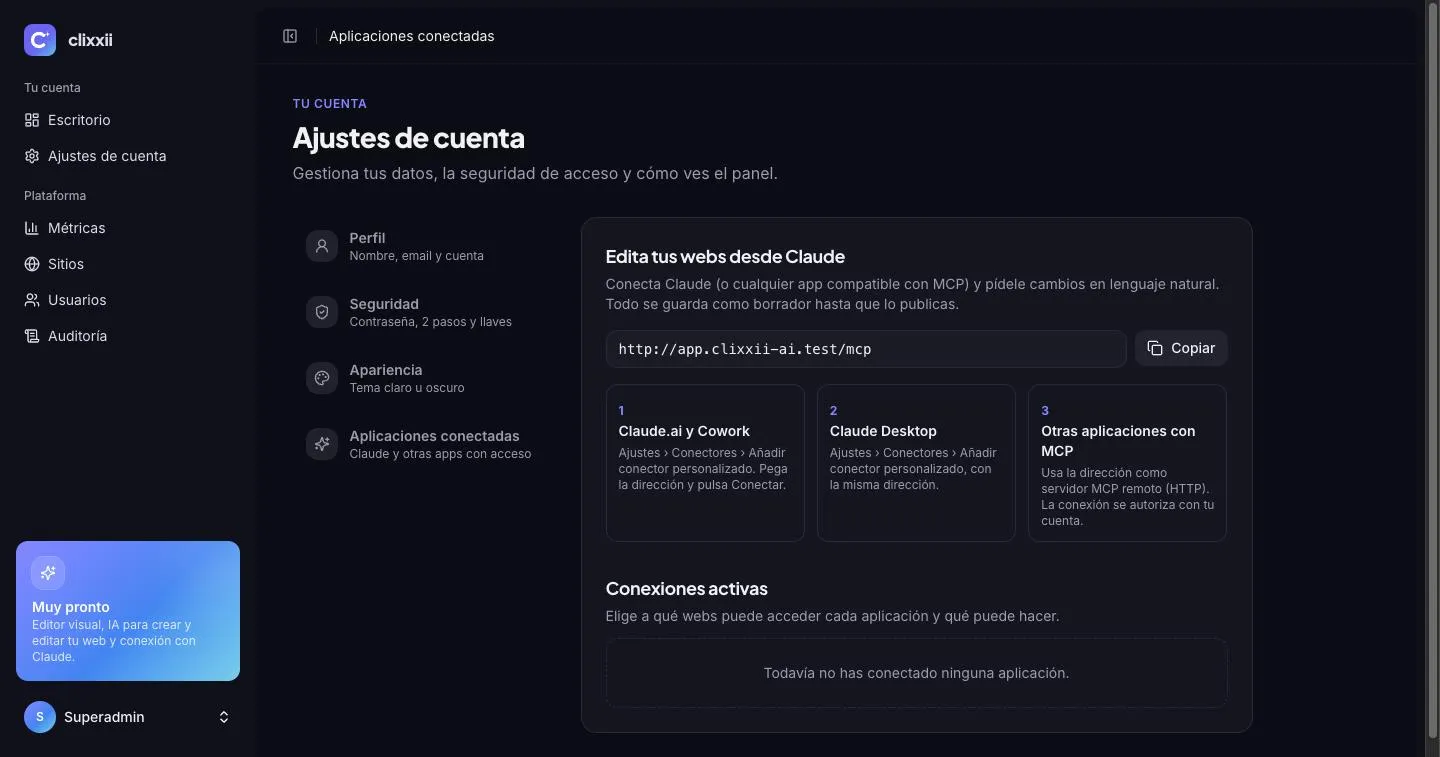
Three steps and you are done
-
01
Copy your address
In the dashboard: Account settings › Connected apps.
-
02
Add the connector
In Claude: Settings › Connectors › Add custom connector, and paste the address.
-
03
Grant permission
Log in with your account and choose the websites and what it can do on each one.
You decide how far it goes
You can change this or disconnect Claude whenever you like from the dashboard.
-
Read only
Views pages, design and messages, but changes nothing.
-
Prepare drafts
Makes changes in draft with a preview; you publish them.
-
Publish
Also publishes when you ask it to. Never more than your role allows.
Also with your assistant or your code editor
The connection uses MCP, the open standard for connecting AI assistants to other applications. It works the same way with ChatGPT, Codex, Cursor, VS Code, Gemini CLI, OpenCode and any other compatible application: the same address, the same permission and the same limits.







Ask it for things like these
-
“Add the black rice to the menu”
Claude finds the menu section and adds the dish in draft.
-
“Write a news post about the autumn menu”
It prepares the news post and sends you the preview link.
-
“Switch the website to the Bistró style”
It applies the style in draft so you can see it before publishing.
-
“What messages came in this week?”
It summarises the enquiries from your forms.
-
“Put Autoconsumo compartido under Fotovoltaica”
It nests it as a sub-service and its URL now starts with the service's URL.
-
“Put the Riba-roja warehouse under Empresas”
It puts the project in that category, in every language.
About Claude and MCP
Do I need a Claude account?
Yes, with a plan that lets you add custom connectors. Claude is an assistant made by Anthropic; clixxii is an independent service.
Which clixxii plans include it?
The Profesional and Agencia plans. During the free trial you can see how it works, and you turn it on when you choose one of those plans.
Is it secure?
The connection uses OAuth: Claude receives a permission limited to the websites and level you choose, never your password. You can revoke it at any time.
What if it does something I did not want?
Everything is logged in the page history and can be undone in one click. With the “Prepare drafts” permission, nothing is published without your approval.
Does it work with ChatGPT, Codex, Cursor or others?
Yes, with any application that supports remote MCP servers with OAuth sign-in. You add the same address from Connected apps wherever that application configures its connectors or MCP servers, log in with your account and choose the permissions. Each connected application appears separately in the dashboard and you can disconnect it whenever you like.
Does it use up my AI credits?
No. When you work from Claude or any other assistant, the AI is provided by your account with that assistant; clixxii credits are only used by the AI in the dashboard.
Start and connect it today
Create your website and connect Claude in two minutes.