
What's new: the bookings agenda, now a real calendar
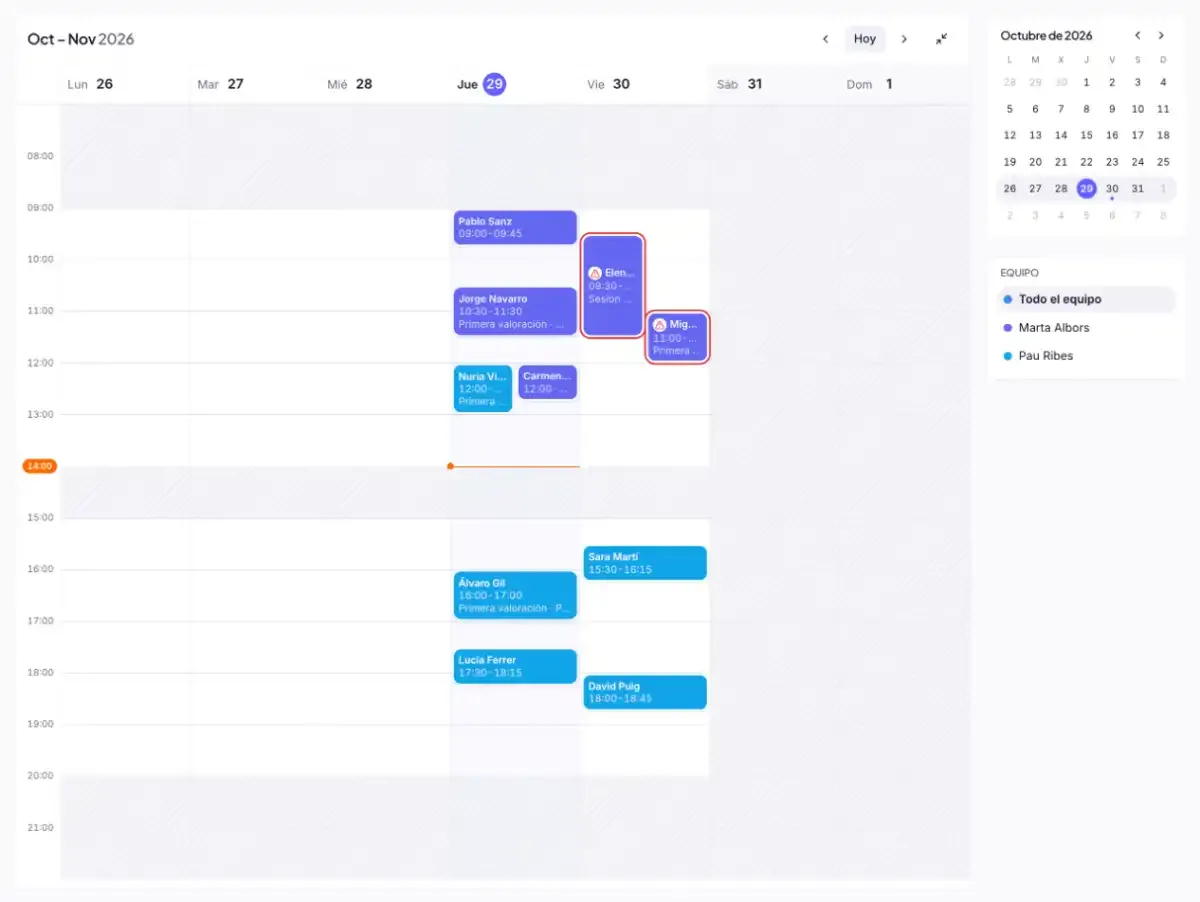
The bookings agenda becomes a week by the hour: each booking at its time and in its person's colour, dragged to move or stretch it, with your team's hours in view, clashes marked and your contacts when you add a booking.
Until now the bookings agenda was a list of bookings per day. It showed what was coming, but it didn't help you plan the week. We have rebuilt it as a calendar by the hour, the kind you'd keep on paper: at a glance you see the gaps, who is busy and which booking clashes with another. It comes with online bookings, with nothing to change on your website.
Each booking at its time, in its colour
The agenda shows the whole week, Monday to Sunday, with the hours down the left. Each booking takes up the space of how long it lasts and has the colour of the person who sees the customer, so each person's agenda stands out at once.
- Your team in view. Below the agenda, each person appears with their colour. Click one to see only their bookings.
- Pending ones stand out. If you confirm bookings yourself, those waiting for an answer look lighter and have a dashed border.
- Go to any week. A small month beside it takes you to any week, and “Today” brings you back to this one.
Drag to change the time or the length
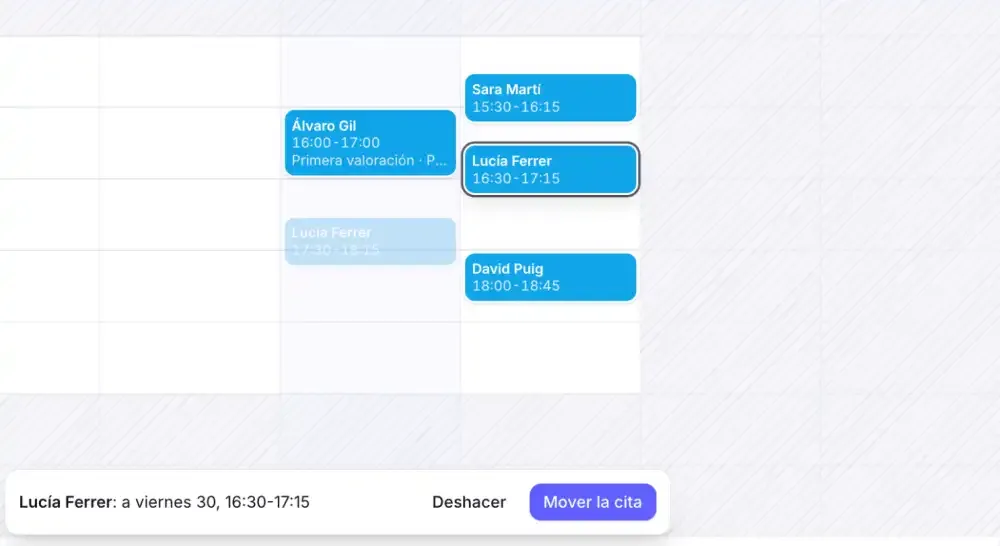
A customer calls to come an hour later: pick up the booking and drop it at the new time, or on another day. If the session runs longer, stretch the booking from its bottom edge.
Nothing changes until you confirm it. When you drop it, a bar shows the new time, a button to undo and the “Tell them by email” box: tick it and they get an email with the change, or untick it if you've already agreed it on the phone.
Your hours, and a bit more
The agenda starts and ends with your team's hours, plus two more hours on each side. Whatever falls outside your opening hours is shaded with stripes, so you see at once that it isn't a usual time.
When the time isn't free, you decide
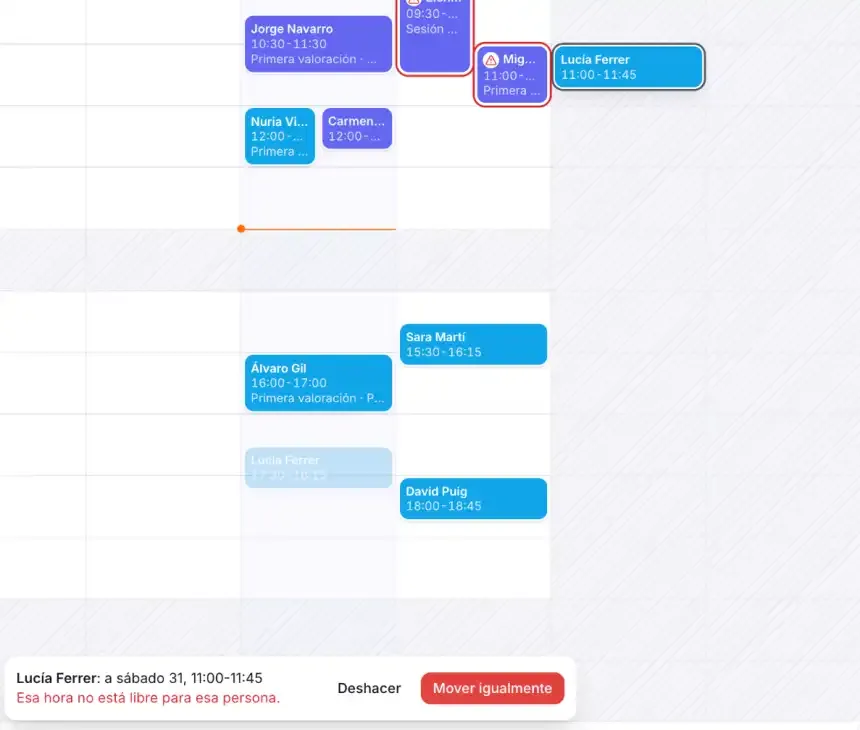
If you move a booking to a time when that person doesn't work or already has another booking, we warn you. But you know your business: with “Move anyway” the booking stays where you put it. The same goes for a new booking, with “Save anyway”. Customers booking on your website still only see free times.
Clashes, marked in red
If two bookings overlap, they sit side by side so you can see both. And if they belong to the same person, they are marked in red with a warning: someone would have to be in two places at once.
New bookings with your contacts
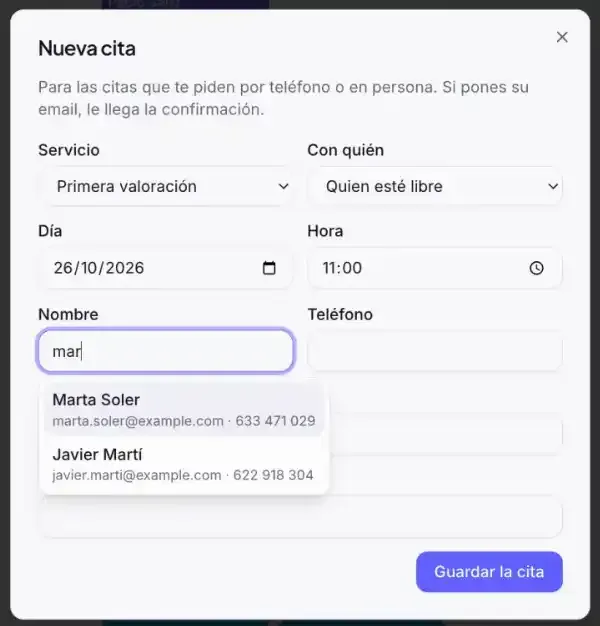
Click a gap in the agenda and a new booking opens with that day and time already set. As you type the name, we suggest people from your contacts with their email and phone: pick one and their details fill in by themselves. The name, the email or a few digits of the phone all work.
Full screen
With the maximise button, the agenda fills the whole window, wide and tall, and the hours stretch so it reads better. It's ideal for keeping it open at reception all day. It's remembered next time you come in, and you leave it with the same button or the Esc key.
From Claude too
If Claude is connected to your website, it can do the same by talking: move a booking, make it longer or give it even when the time isn't free. For example:
- “Move Elena's Friday booking to 12:00 and email her.”
- “Marc's session tomorrow lasts an hour and a half.”
- “Give Laura a booking on Saturday at 10:00 with Marta, even though she doesn't work that day.”
And on your website, the calendar where customers choose the day now takes the full width, with days that are easier to tap on a phone.
See everything bookings do on the online bookings page.
Try it on your website
Build your website with AI and try it free for 14 days, no card needed.